
Semantic HTML: the one fix that improves accessibility and AI visibility at the same time
Semantic HTML uses elements that describe what content is, not just how it looks — and fixing it improves accessibility compliance and AI search visibility at the same time.
Semantic HTML means using HTML elements that describe what content is, not just how it looks. A <nav> tells a browser, a screen reader, and a crawling AI that this block contains navigation — a <div> with a CSS class tells none of them anything useful.
That distinction sounds minor. It's not. Semantic markup is probably the highest-leverage single change you can make to a website, because it fixes two separate problems — accessibility compliance and AI search visibility — with the same edit.
What does "semantic HTML" actually mean?
HTML elements fall into two categories. Presentational elements describe appearance: <b> makes text bold, <i> makes it italic. Semantic elements describe meaning: <strong> marks important text, <em> marks emphasized text. The rendered output can look identical. The meaning is completely different.
The same principle scales up to page structure. Compare these two approaches to a blog post:
<!-- Non-semantic -->
<div class="header">
  <div class="nav">...</div>
</div>
<div class="content">
  <div class="article">
    <div class="title">My Post</div>
    <div class="body">...</div>
  </div>
</div>
<div class="footer">...</div>

<!-- Semantic -->
<header>
  <nav>...</nav>
</header>
<main>
  <article>
    <h1>My Post</h1>
    <p>...</p>
  </article>
</main>
<footer>...</footer>
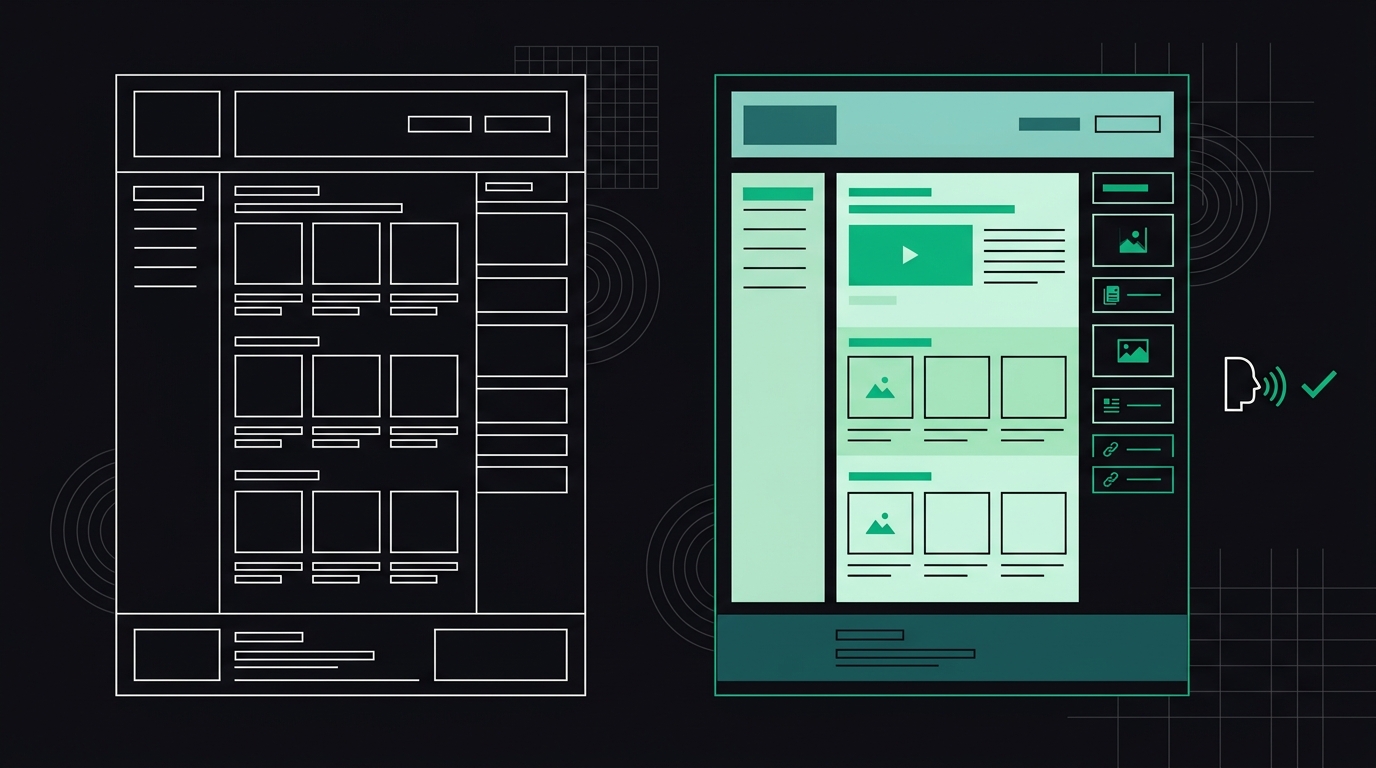
A sighted user sees no difference. Screen reader users, search engines, and AI crawlers see an entirely different document.
Why does semantic HTML matter for accessibility?
Screen readers — software used by people who are blind or have low vision — rely on HTML semantics to give users a mental map of the page. When someone navigates with a screen reader, they can jump between landmarks: directly to <main> to skip repeated navigation, into each <section>, or through every heading level without reading every word.
The WebAIM Screen Reader User Survey (published roughly every two years at webaim.org) consistently shows that heading navigation is the most commonly used method for finding information on a page. If your headings are just big bold <div> elements rather than actual <h1> through <h6> tags, screen reader users can't use that navigation shortcut at all.
WCAG 2.1 addresses this directly across multiple success criteria. The WCAG success criteria that semantic HTML directly supports include:
- 1.3.1 Info and Relationships — structure conveyed visually must be conveyed programmatically. A heading that looks like a heading but isn't marked up as one fails this criterion.
- 2.4.1 Bypass Blocks — the page must have a mechanism for users to skip repeated navigation. Landmark regions (
<header>,<nav>,<main>) satisfy this requirement. - 2.4.6 Headings and Labels — headings must describe their topic or purpose. You can't have a heading if there's no actual heading element.
- 4.1.2 Name, Role, Value — interactive elements must expose their role. A
<div>styled as a button has no role unless you add ARIA — a<button>element has the correct role by default.
That last point is worth pausing on. I've reviewed codebases where entire navigation menus were built out of <span> and <div> elements with click handlers. The developer added cursor: pointer in CSS and called it done. Keyboard users can't focus those elements. Screen reader users don't know they're clickable. The whole thing is invisible to assistive technology.
The fix? Replace the <div> with a <button> or an <a> tag. One element change. No JavaScript, no ARIA magic — just the right HTML.
How does semantic HTML affect AI visibility?
AI answer engines — ChatGPT Search, Perplexity, Google AI Overviews, Bing Copilot — work by crawling pages and extracting content to cite and summarize. They don't "read" pages the way humans do. They parse the DOM, identify what text is a heading, what's body copy, what's navigation, and what's a footer. Then they decide what's worth extracting.
If your most important content is buried in undifferentiated <div> soup, an AI parser has to guess what matters. It's not great at guessing. Content that appears inside proper semantic containers — <article>, <section>, well-structured <h2> and <h3> hierarchies — is dramatically more likely to be pulled out as a citable passage.
This is the same underlying reason that good semantic markup helps with AI readability: both screen readers and AI parsers are doing roughly the same job — converting visual layout back into structured meaning. If the HTML already encodes that structure, neither has to guess.
A few specific patterns that AI engines extract well:
- Questions in
<h2>or<h3>tags, with direct answers in the immediately following<p> - Definition-style content using
<dl>,<dt>, and<dd>elements - Ordered steps using
<ol>with each step in its own<li> - Content inside
<article>elements, which signals "this is the primary content, not the furniture"
Side note: this is also why FAQ sections encoded as proper heading-and-paragraph pairs get pulled into Google's AI Overviews so often — but that's a topic for another post.
What are the most common semantic HTML mistakes on real sites?
In practice, the problems I see over and over fall into a pretty predictable set.
Skipped heading levels
Jumping from an <h1> straight to an <h4> breaks both the visual hierarchy and the programmatic one. Screen readers announce heading levels, so a user navigating by headings gets disoriented. AI parsers treat heading depth as a signal of content hierarchy — a skipped level looks like a broken outline.
Multiple <h1> elements
One page, one <h1>. That's the rule. The <h1> is the page's title. If you have five <h1> elements because your CSS framework defaults every section header to that size, you need to fix the markup and use CSS to control font size separately from document structure.
Buttons and links swapped
This one bites developers constantly. <a> tags navigate somewhere. <button> tags perform an action on the current page. Using an <a href="#"> for a modal trigger isn't just semantically wrong — it creates keyboard and screen reader confusion because users expect links to go somewhere, and buttons to do something.
Missing landmark regions
A page with no <main> element has no skip-navigation mechanism. A page with no <nav> can't be efficiently navigated by a screen reader user looking for the site menu. These aren't obscure requirements — they're basic structural HTML that every page should have.
Tables used for layout
Still happens. If you're using <table> to achieve a multi-column layout rather than CSS Grid or Flexbox, screen readers announce it as tabular data. Users expect to navigate columns and rows. The experience is genuinely disorienting. Use CSS for layout, and reserve <table> for actual data tables — which should include <thead>, <th scope="col">, and a <caption>.
Where should you start if your site has structural issues?
Honestly? Start with headings. Heading structure is the single most common accessibility issue and the single most visible AI-readability issue, and it's usually fixable in an afternoon.
Open your browser's developer tools, pull up the Elements panel, and do a quick scan: Is there one <h1>? Do the heading levels nest logically (h1 → h2 → h3, not h1 → h3 → h2)? Are headings actual <h1>-<h6> elements, or are they styled <div> and <span> tags?
After headings, check landmarks. Every page should have at minimum: <header>, <nav>, <main>, and <footer>. If you're using an older site built entirely in <div>s, adding these five elements takes maybe 20 minutes and immediately improves both accessibility and AI parseability.
Or rather — it improves them for new visitors. Existing indexed pages may take a few crawl cycles to update. But the structural improvement is immediate.
For a more thorough approach, checking your site against the full WCAG checklist will surface semantic issues alongside color contrast, focus indicators, and form labeling problems — all the related issues that tend to cluster together.
Does fixing semantic HTML actually help SEO and AI rankings?
Direct ranking boost? Google's never confirmed a clean causal link. But the indirect effects are real and measurable.
Well-structured documents earn featured snippets more often. Google's documentation for structured data and helpful content consistently emphasizes clear hierarchy and scannable content. AI answer engines — which are now driving meaningful referral traffic on competitive queries — show strong preference for content they can cleanly extract and attribute.
The connection between structural HTML and how generative engines find and cite your content is increasingly well-documented. The sites that get cited by Perplexity and ChatGPT Search tend to have two things in common: clear authority signals, and clean extractable structure. Semantic HTML delivers the second half of that.
And there's the practical argument: fixing semantics costs nothing but time. The upside — better accessibility compliance, reduced legal exposure, improved AI visibility, marginally better SEO — is all additive. There's no downside case.
Frequently Asked Questions
What is semantic HTML in simple terms?
Semantic HTML means using HTML elements that describe the purpose of content, not just its appearance. A <button> element tells browsers and assistive technology "this is a clickable control." A <nav> element signals "this is navigation." Using the right element for the right job is what makes a page understandable to screen readers, AI crawlers, and search engines — not just to sighted users.
Which HTML elements are considered semantic?
The most important structural semantic elements are: <header>, <nav>, <main>, <article>, <section>, <aside>, <footer>, <h1> through <h6>, <figure>, <figcaption>, <time>, and <address>. For interactive elements: <button>, <a>, <form>, <label>, <input>, and <select> all carry semantic meaning that <div> and <span> do not.
Does semantic HTML help with WCAG compliance?
Yes, significantly. Semantic HTML directly supports at least four WCAG 2.1 success criteria, including 1.3.1 (Info and Relationships), 2.4.1 (Bypass Blocks), 2.4.6 (Headings and Labels), and 4.1.2 (Name, Role, Value). Many accessibility violations that show up in audits — missing landmark regions, non-descriptive link text, unlabeled form fields — are symptoms of non-semantic markup rather than standalone problems.
Can semantic HTML help my site appear in AI Overviews and ChatGPT answers?
It's one of the strongest structural signals you can give AI parsers. ChatGPT Search, Perplexity, and Google's AI Overviews extract content chunks to synthesize answers. Pages with clear heading hierarchies, content wrapped in <article> elements, and Q&A structures using heading-paragraph pairs are extracted more cleanly than pages built from undifferentiated <div> containers. It doesn't guarantee a citation, but it removes a structural barrier.
How do I check if my site uses semantic HTML correctly?
Start with your browser's developer tools — inspect the page and check whether you have one <h1>, whether landmark elements exist, and whether interactive controls are actual <button> or <a> elements. For a faster audit, running a scan through a tool like AccessKnight will flag semantic issues alongside the full set of WCAG checks, with specific code-level fixes for each one.
Is ARIA a substitute for semantic HTML?
No — and this is a common mistake. ARIA (Accessible Rich Internet Applications) is meant to supplement semantic HTML for complex interactive widgets that don't have a native HTML equivalent. Using role="button" on a <div> instead of just using a <button> element creates unnecessary complexity and is easier to get wrong. The W3C's guidance on using ARIA is explicit: the first rule of ARIA is to use native HTML elements when they meet your needs.
Check your website's accessibility
Scan against all 33 WCAG 2.1 rules and get code-level fix suggestions — free.
Run a free scan →