
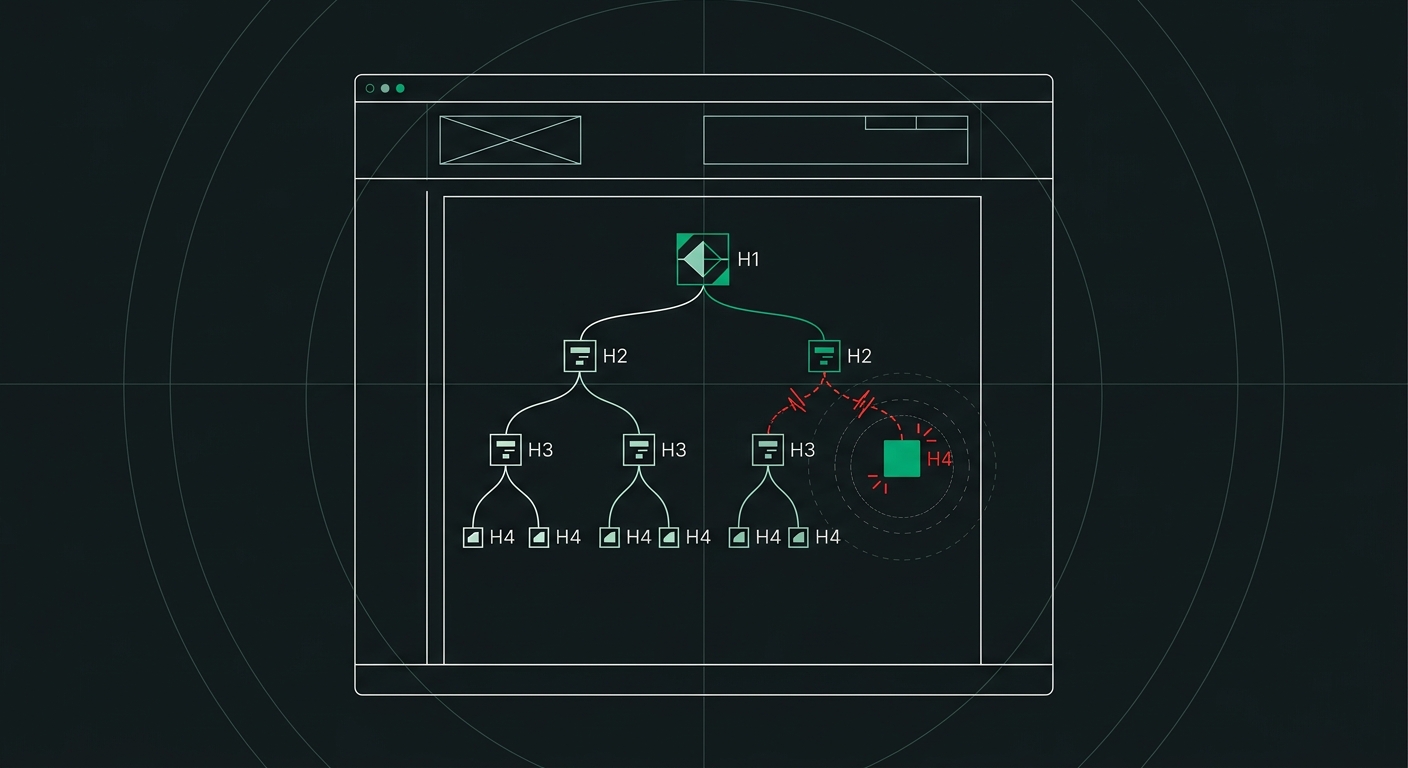
Why Does My Site Fail WCAG Heading Structure Checks? Fixing Skipped Levels and Multiple H1s
Multiple H1 tags and skipped heading levels both fail WCAG 1.3.1 and confuse screen readers and AI crawlers. Here's how to find and fix both.
A site fails WCAG heading structure checks when its <h1> through <h6> tags don't form a logical, sequential outline — usually because there are two or more <h1> elements on one page, or because the hierarchy jumps levels (say, from an <h2> straight to an <h4>) without an <h3> in between. Both patterns violate WCAG 1.3.1 (Info and Relationships), because the visual heading structure no longer matches the structure a screen reader or crawler can actually parse.
This is one of those checks that looks cosmetic until you watch a screen reader user try to navigate a page with it. It isn't cosmetic. It's load-bearing.
What Counts as a Heading Structure Failure Under WCAG?
WCAG doesn't have a rule literally titled "heading structure." Instead, heading problems get flagged under Success Criterion 1.3.1, which requires that information conveyed through presentation (like visual heading size and weight) also be conveyed programmatically, through actual semantic markup. A page with text that looks like a heading but is really just a bolded <div>, or a page where the heading tags exist but don't nest logically, fails this check even if it looks perfectly fine on screen.
In practice, auditors (and automated scanners like the one at AccessKnight's free scan tool) flag three recurring patterns:
- Multiple
<h1>tags on a single page, with no clear single "main topic" heading. - Skipped levels, where the document jumps from
<h2>to<h4>or<h1>to<h3>with nothing between. - Headings used for styling only — picking an
<h3>because it happens to render at the right font size, regardless of where it sits in the outline.
Any one of these can trip a WCAG audit. All three together are shockingly common — I'd guess I see at least one on nine out of ten sites I scan that were built without an accessibility pass.
Why Do Multiple H1 Tags Fail Accessibility Checks?
An <h1> is supposed to answer one question: what is this page about? When a page has three or four of them, that question no longer has one answer.
Screen reader users often jump straight to heading navigation — pressing a single key (usually "H" in JAWS or NVDA) to skip from heading to heading instead of reading line by line. It's roughly the audio equivalent of skimming a table of contents. When a user lands on the second or third <h1> partway down the page, they lose the sense of hierarchy entirely. Was that a new page? A new section? A mistake? There's no way to tell from the markup alone.
This pattern shows up constantly on pages built with drag-and-drop builders, where every "hero section" template defaults to an <h1> regardless of where it sits on the page. I worked with a mid-size furniture retailer last year whose product pages had four H1 tags each — one in the header logo, one in the hero banner, one in a promo block, and the actual product title buried as an <h3>. Screen reader users had no reliable way to find the actual product name. Neither, as it turns out, did Google's crawler — the product pages weren't surfacing in rich results at all.
The fix is almost always the same: one <h1> per page, describing the primary content of that page. Everything else gets demoted to <h2> or lower, based on its actual role in the outline — not its font size.
What's Wrong With Skipping Heading Levels?
Skipping from <h2> to <h4> feels harmless. The text still renders. The page still looks right. So why does it fail?
Because assistive technology builds its navigation model entirely from heading level numbers, not visual appearance. When a screen reader announces "heading level 4," a user assumes there's a level 3 somewhere above it that they can jump back to for context. If that level 3 doesn't exist, the user is left disoriented — level 4 content appears to belong to nothing. It's a broken outline, and outlines are exactly what heading structure exists to represent.
This usually happens for one of two reasons. Either a developer picked a heading tag because of how it looks in the default stylesheet (an <h4> happened to be the right size for a sidebar widget title), or a CMS template was built once and reused across pages with different content depths, so the levels drift out of sync over time. A blog post with a deeply nested FAQ section is a classic culprit — someone jumps to <h5> for a sub-question without ever having used an <h3> or <h4> above it.
Here's a quick way to think about correct nesting:
<h1>Page Title</h1>
  <h2>Major Section</h2>
    <h3>Subsection</h3>
    <h3>Subsection</h3>
  <h2>Next Major Section</h2>
    <h3>Subsection</h3>
      <h4>Detail</h4>
Notice you can drop down a level cleanly, and you can go back up to a higher level at any point. What you can't do is skip a rung on the way down. Going from <h2> to <h4> without a <h3> breaks that ladder.
How Do Screen Readers Actually Use Headings?
Most screen reader users rely on headings as their primary wayfinding tool — arguably more than any other navigation method on a page.
WebAIM's survey work on screen reader usage has repeatedly found that heading navigation ranks among the top two or three ways blind users find content on a page, right alongside using a search function or scanning landmarks. NVDA and JAWS both let users pull up a full "headings list" dialog, essentially a generated table of contents, and jump directly to any item in it. If that list reads: Heading 1, Heading 1, Heading 1, Heading 4, Heading 2 — it tells the user nothing useful about how the page is organized. They're forced to fall back on reading everything in order, which defeats the entire purpose of having headings in the first place.
This is also why heading structure problems tend to cluster with other WCAG failures. A site with messy headings often also has unlabeled form fields, vague link text, and missing landmarks — not because these issues are related technically, but because they all come from the same root cause: nobody built the page with a screen reader in mind. If you're auditing one, it's worth checking the others. Our WCAG checklist covers the related rules you'll typically find bundled with heading issues, including link purpose and form labeling.
Does Heading Structure Affect AI Search Visibility Too?
Yes — and this is the part most site owners miss entirely. AI crawlers used by ChatGPT, Perplexity, and Google's AI Overviews lean on heading tags to understand what a page is actually about and how its content is organized, the same way a screen reader does.
When an AI system parses a page for a potential citation, it's effectively trying to build a summary tree: main topic, major sections, supporting details. A clean <h1> > <h2> > <h3> hierarchy gives it that tree for free. A page with five H1 tags and no consistent nesting gives it a flat pile of text with no clear topic signal — which makes it harder to extract a confident, citable answer. I've seen this play out directly: two near-identical product pages, same word count, same keyword targeting, where the one with clean heading hierarchy got pulled into an AI Overview snippet and the messy one didn't.
If you want the fuller picture on how crawler parsing and citation extraction actually work, it's worth reading our guide to AI readability — heading structure is one of three core pillars that determine whether a page can even be parsed cleanly, let alone cited.
How Do You Audit and Fix Your Heading Hierarchy?
Start by generating an outline of your actual markup, not your visual layout. Browser extensions like the HeadingsMap tool (available for Chrome and Firefox) will list every heading on a page in document order, with its level — it takes about ten seconds and immediately surfaces duplicate H1s and skipped levels.
Once you've got the outline in front of you, the fix process is mechanical:
- Pick exactly one
<h1>per page. On a homepage, that's usually your core value proposition. On a blog post, it's the title. Demote every other "hero text" instance to<h2>. - Walk the outline top to bottom and fix any level that jumps by more than one step. An
<h2>followed by an<h4>becomes<h2>followed by<h3>. - Separate visual size from semantic level in your CSS. If an
<h3>needs to look smaller than your default<h2>for a given section, style it with a class — don't drop it to<h4>just to shrink the font. - Re-check CMS templates, not just individual pages. If your blog template nests comments or related-posts widgets under the wrong heading level, every post built from that template inherits the same bug.
One thing I'd push back on: don't try to "fix" heading structure by stuffing keywords into every H2 and H3 for SEO purposes. Semantic headings and SEO overlap, sure, but a heading's first job is describing the section below it accurately. If it also happens to contain a keyword naturally, great. If you're forcing it, you're trading accessibility for a marginal and probably temporary ranking gain.
What's the Difference Between a Visual Heading and a Semantic Heading?
A visual heading is text that looks big and bold. A semantic heading is text wrapped in an actual <h1>–<h6> tag that communicates structure to the browser's accessibility tree. The two aren't the same thing, and conflating them is where most heading failures start.
You'll see this most often with <div> or <span> elements styled with large font sizes and bold weight to look like a heading, with no semantic tag at all. These pass a visual design review every time, because they look correct. They fail every accessibility audit, because screen readers and crawlers see plain, unstructured text — no heading announced, no entry in the outline, nothing to navigate to.
If something reads like a section title, it should be marked up as one. That's the whole rule, really.
Frequently Asked Questions
Can a page have more than one H1 tag and still pass WCAG?
Technically, WCAG 1.3.1 doesn't explicitly ban multiple H1s in every single case, but in practice, multiple H1 tags almost always break the logical outline a screen reader relies on, and most automated and manual audits will flag it as a failure. The safest, most defensible approach is one H1 per page, describing that page's main topic.
Does skipping from H1 to H3 fail WCAG even if the page looks fine visually?
Yes. WCAG evaluates the programmatic structure, not the visual rendering. A jump from H1 to H3 with no H2 breaks the heading outline that screen reader users rely on for navigation, even if the page looks perfectly normal to sighted users.
Do heading tags actually affect SEO rankings?
Google has said heading tags are a minor ranking signal, used mainly to understand page structure and topic relevance rather than as a direct ranking boost. The bigger impact today is on AI search tools and featured snippets, which rely heavily on clean heading hierarchy to extract and cite content accurately.
What's the fastest way to check my site's heading structure?
Browser extensions like HeadingsMap give you an instant outline of every heading on a page, in order, with its level. Running your pages through a scanner that checks WCAG rules automatically — like the free tool at AccessKnight — will also flag duplicate H1s and skipped levels directly, with the specific line to fix.
Should every section of a page have its own heading?
Not necessarily every section, but any distinct block of content that a user might want to jump to directly should have one. Decorative dividers, single-sentence callouts, or purely visual separators don't need headings. Actual content sections — FAQs, product details, pricing tiers — almost always should.
Can CSS styling fix a skipped heading level problem?
No. CSS changes appearance, not semantics. Styling an H2 to look smaller doesn't fix a missing H3 in your outline — the underlying HTML tag is what screen readers and crawlers read, regardless of how it's styled.
Next Step
Pull up your homepage and your top-performing blog post right now and run them through a heading outline tool. If you find two H1 tags or a skipped level, fix it today — it's usually a five-minute change per page, not a redesign. And if you want the full picture of how your heading structure (plus the other 32 WCAG checks) stacks up, along with how an AI crawler would actually parse your site, running a free scan at AccessKnight will give you the specific lines to fix, not just a pass/fail score.
Check your website's accessibility
Scan against all 33 WCAG 2.1 rules and get code-level fix suggestions — free.
Run a free scan →