
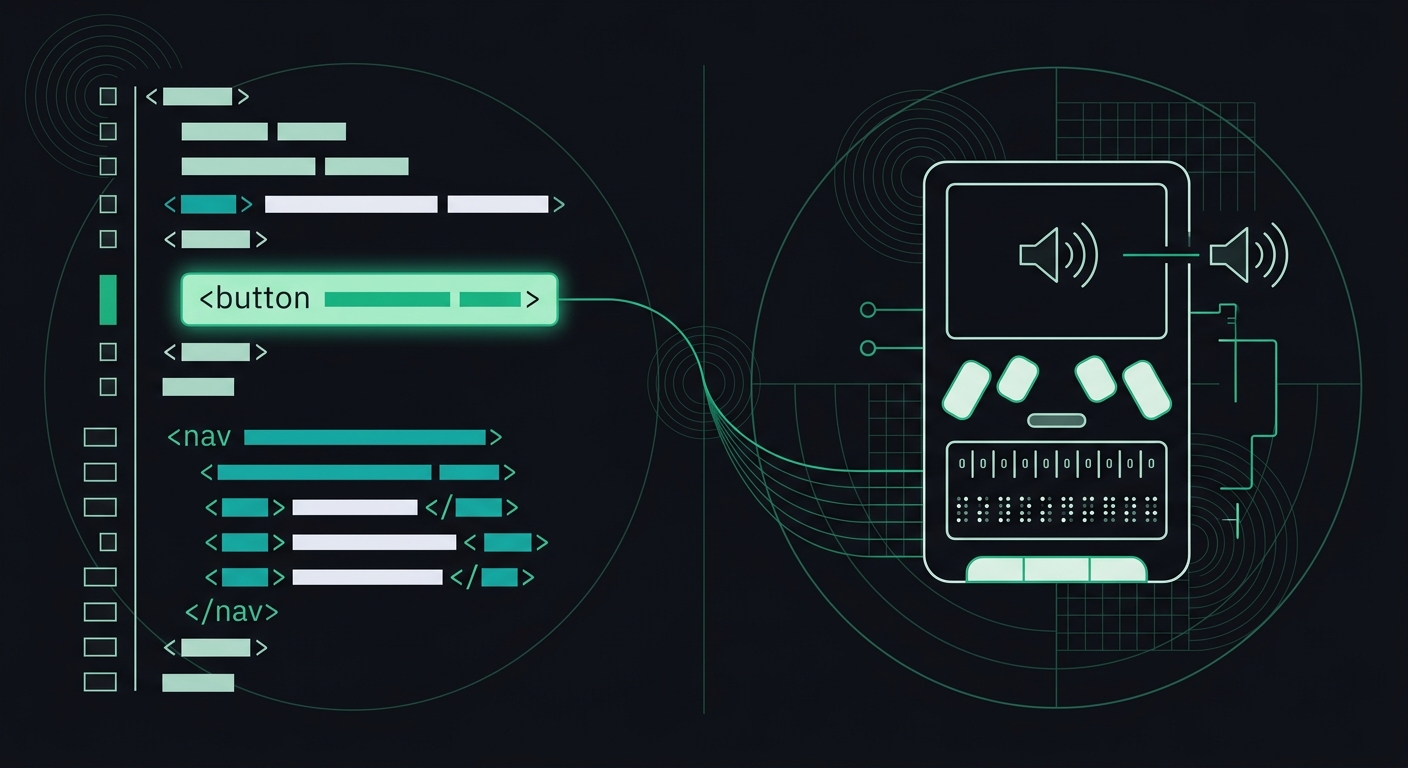
ARIA Labels vs. Native HTML: Which One Actually Helps Screen Readers and AI Crawlers?
Native HTML beats ARIA almost every time for screen readers and AI crawlers alike. Here's when ARIA actually helps — and when it's just papering over bad markup.
Native HTML wins almost every time. Elements like <button>, <nav>, and <label> come with built-in meaning that screen readers and AI crawlers already understand — no extra markup required. ARIA labels are a patch, not a replacement, and they only help when native HTML genuinely can't do the job.
That's the short version. But if you've ever inherited a codebase full of <div role="button"> elements and wondered whether someone was being thorough or just making things worse, you know the real answer takes more explaining.
What's the difference between ARIA labels and native HTML?
Native HTML elements carry semantic meaning automatically. A <button> tells the browser (and every assistive technology that talks to it) that it's clickable, focusable, and expects keyboard interaction like Enter or Space. You don't have to tell it any of that — it's baked in.
ARIA (Accessible Rich Internet Applications) is a set of HTML attributes — things like role, aria-label, and aria-expanded — that let you bolt accessibility semantics onto elements that don't have them natively. A <div> has no inherent meaning. Slap role="button" on it, and you're telling assistive tech to treat it like a button. But here's the catch: you also have to manually add keyboard support, focus styles, and state management yourself. ARIA describes the role. It doesn't build the behavior.
That distinction trips up a lot of developers. ARIA changes what a screen reader announces. It does nothing to change how the browser actually behaves.
Do screen readers prefer native HTML or ARIA?
Screen readers prefer native HTML because it requires zero interpretation. When a screen reader hits a <button>, it knows exactly what to announce and how to handle focus — that logic is built into the browser's accessibility tree, not guessed at.
ARIA, by contrast, depends entirely on the developer getting it right. Miss one required attribute, forget to manage aria-expanded on a dropdown toggle, or leave a modal without proper focus trapping, and the screen reader user hits a wall. I've tested plenty of custom dropdown menus built with <div> and ARIA roles that looked fine visually but were completely unusable with a keyboard — no focus indicator, no escape key handling, nothing.
This isn't a hunch. The WebAIM Million survey — an annual scan of the top one million home pages — has repeatedly found that pages using ARIA actually average more detectable accessibility errors than pages that don't use it at all. That sounds backwards until you realize what's happening: ARIA is often added by developers trying to fix a problem that started with the wrong element choice in the first place. It's a symptom, not always a solution.
What is the first rule of ARIA?
The first rule of ARIA use, straight from the W3C's own guidance, is: don't use ARIA if a native HTML element or attribute already does the job. If a semantic tag can achieve the same effect, use it. Only reach for ARIA when there's no native option.
In practice that means:
- Use
<button>instead of<div role="button">. - Use
<nav>instead of<div role="navigation">. - Use
<label>tied to an<input>instead ofaria-labelfloating on its own. - Use an actual
<h2>instead of styling a<span>to look like a heading and addingrole="heading" aria-level="2".
We cover the heading example specifically in our guide on heading structure mistakes that hurt WCAG compliance, because skipped or faked heading levels confuse both screen reader navigation and AI content extraction in almost identical ways.
Where does ARIA actually help?
ARIA earns its keep in three specific situations: custom widgets, dynamic content updates, and supplemental labeling when visual context isn't enough.
Custom widgets are the big one. If you're building a tab panel, an accordion, or a combobox — components that don't have a clean native HTML equivalent — ARIA roles like role="tablist", aria-selected, and aria-controls are exactly what they were designed for. Just know that you're signing up to manually replicate all the keyboard behavior a native element would've given you for free.
Dynamic content is the second case. A live chat window that updates without a page reload needs aria-live="polite" so screen reader users actually hear the new message. There's no native HTML tag for "announce this when it changes." That's ARIA's job, and it does it well.
Supplemental labeling is the third. An icon-only button — say, a magnifying glass with no visible text — needs aria-label="Search" because there's no text node for a screen reader to read. That's a legitimate, necessary use of ARIA. The mistake is using aria-label as a substitute for visible text everywhere else, which strips context for sighted users and can actually work against AI crawlers, which weigh visible text more heavily than hidden attributes.
How do AI crawlers parse ARIA versus semantic HTML?
AI crawlers — the bots behind ChatGPT Search, Perplexity, Claude, and Google's AI Overviews — rely heavily on the same accessibility tree that screen readers use, plus the raw structure of your HTML. Semantic elements give them a map. ARIA gives them hints, but hints they weigh less.
Here's the practical difference. When an AI crawler sees <article>, <nav>, and <main>, it can confidently separate your actual content from your site's furniture — menus, sidebars, footers. That separation matters a lot for extractability: it's a big part of what determines whether a model can pull a clean, citable chunk out of your page. We go deeper on this in our guide to AI readability, but the short version is that crawlers reward structural clarity over descriptive labels.
ARIA attributes like aria-label can add useful context, but they're metadata sitting on top of structure that's already ambiguous. If your page is built entirely from <div> soup with ARIA roles duct-taped on, an AI crawler has to work a lot harder to figure out what's a heading, what's navigation, and what's the actual answer to the user's question. Sometimes it just gives up and cites a competitor's page instead — one built with cleaner markup.
This is also where semantic HTML pulls double duty. Fixing it isn't just a screen reader win. It's the same fix that makes your content easier for a language model to parse, chunk, and quote accurately.
What are the most common ARIA mistakes that hurt accessibility?
Overuse is the top offender, by a wide margin. Developers sometimes add ARIA roles to elements that already have correct native semantics — a role="button" on an actual <button> element, for instance. It's redundant at best and, if the role doesn't match the underlying behavior, actively confusing at worst.
A few others I see constantly during audits:
- Mismatched roles and behavior. A
<div role="button">with notabindexand no keydown handler. Screen reader users hear "button" but can't actually activate it with a keyboard. - Overlapping labels. An element with both visible text and an
aria-labelthat says something different. Screen readers announce thearia-label, ignoring the visible text — which means sighted users and screen reader users get two different experiences of the same button. - Empty or missing
alttext papered over with ARIA. Addingaria-labelto an image instead of just filling in thealtattribute correctly. Just usealt. That's what it's for. Our alt text guide covers this in more detail. - Live regions that never stop talking. An
aria-live="assertive"region that fires on every minor DOM update, burying users in noise until they mute the whole page.
One thing I tell every dev team I work with: if you're writing more ARIA than markup, stop and ask whether you picked the wrong element three steps back. Nine times out of ten, the fix is swapping a <div> for the right tag, not adding another attribute.
ARIA vs. native HTML: a quick decision framework
| Situation | Use native HTML | Use ARIA |
|---|---|---|
| Clickable action (submit, toggle, open menu) | <button> | Only if button truly can't work (rare) |
| Page navigation menu | <nav> | Not needed |
| Form field label | <label for="..."> | aria-label only for icon-only inputs |
| Custom tab interface | No native equivalent | role="tablist", aria-selected |
| Chat message updates live | No native equivalent | aria-live="polite" |
| Heading structure | <h1>–<h6> | Never fake with role="heading" |
Key Takeaways
- Native HTML elements carry built-in semantics and keyboard behavior — ARIA only carries semantics, and only if you set it up correctly.
- The W3C's own rule is to skip ARIA whenever a native HTML element does the same job.
- ARIA earns its place in custom widgets, live region announcements, and labeling icon-only controls — not as a general substitute for good markup.
- AI crawlers weight structural HTML (like
<article>and proper headings) more heavily than ARIA attributes when deciding what to extract and cite. - Pages with heavy ARIA use tend to show more accessibility errors on average, according to WebAIM's annual Million survey — a sign that ARIA is often patching over structural problems rather than solving them.
Frequently Asked Questions
Is ARIA better than semantic HTML for accessibility?
No. Semantic HTML is almost always the better choice because it comes with built-in browser behavior — keyboard support, focus handling, and correct screen reader announcements — without any extra code. ARIA is meant to fill gaps where no native element exists, not to replace one that does.
Can too much ARIA hurt accessibility?
Yes. Adding conflicting or redundant ARIA attributes can override correct native semantics and confuse screen readers. The WebAIM Million survey has consistently found that pages with more ARIA usage tend to have more detectable errors, not fewer, largely because ARIA is often layered onto poor underlying markup instead of fixing it.
Do AI crawlers read ARIA labels?
Some do, to a limited extent, but they rely far more on visible text and semantic HTML structure. An aria-label on an icon button can help, but it won't compensate for a page built with non-semantic <div> containers instead of proper headings, lists, and landmark elements.
What is the first rule of ARIA use?
The first rule, as stated by the W3C, is not to use ARIA at all if a native HTML element or attribute already provides the same role, state, or behavior. ARIA should only fill in where HTML has no built-in equivalent.
Does fixing ARIA issues also improve AI readability?
Often, yes, but indirectly. Fixing ARIA problems usually means replacing non-semantic markup with proper HTML elements, and that structural cleanup is exactly what helps AI crawlers identify headings, navigation, and main content correctly.
How do I know if my site is using ARIA correctly?
Run it through a screen reader like NVDA or VoiceOver and try navigating with only a keyboard. If buttons, menus, or forms don't behave the way you'd expect, there's likely a mismatch between the ARIA role and the underlying element's actual behavior. An automated scan can also flag many of these issues quickly before you go digging manually.
Where to go from here
If you've got custom components — dropdowns, modals, tab panels, anything built from <div> and JavaScript — that's the first place to check for ARIA gone wrong. Tab through them with just your keyboard. If something doesn't focus, doesn't announce correctly, or doesn't respond to Enter or Space, you've found a spot where ARIA promised something the code doesn't deliver.
The full list of WCAG rules we check, including the ones tied directly to ARIA and semantic structure, is in our WCAG fix guide library, with copy-paste code for each one. And since a lot of these same structural issues affect whether AI engines can actually read and cite your content, it's worth running your site through a free WCAG and AI-readability scan to see exactly where the native HTML fell short and ARIA got called in to cover for it.
Check your website's accessibility
Scan against all 33 WCAG 2.1 rules and get code-level fix suggestions — free.
Run a free scan →