
How to Fix Untagged PDFs So They Pass WCAG and Get Read by AI Search Tools
Untagged PDFs fail WCAG and get skipped by AI search tools. Here's how to check, tag, and fix them so both screen readers and AI can read them.
An untagged PDF fails WCAG because screen readers and AI crawlers can't tell a heading from a paragraph, or a table from a wall of text — they just see a flat image of characters. Fixing it means adding a tag structure (headings, lists, tables, reading order, alt text) so both assistive tech and AI models can parse the document the way they'd parse a well-built webpage.
I've audited a lot of sites where the HTML is clean, the color contrast passes, the forms are labeled — and then there's a folder of 200 PDFs sitting on the server from 2019, untouched since someone exported them from Word. Nobody thinks about the PDFs. That's usually where the audit falls apart.
What Makes a PDF "Untagged" (and Why It Fails WCAG)?
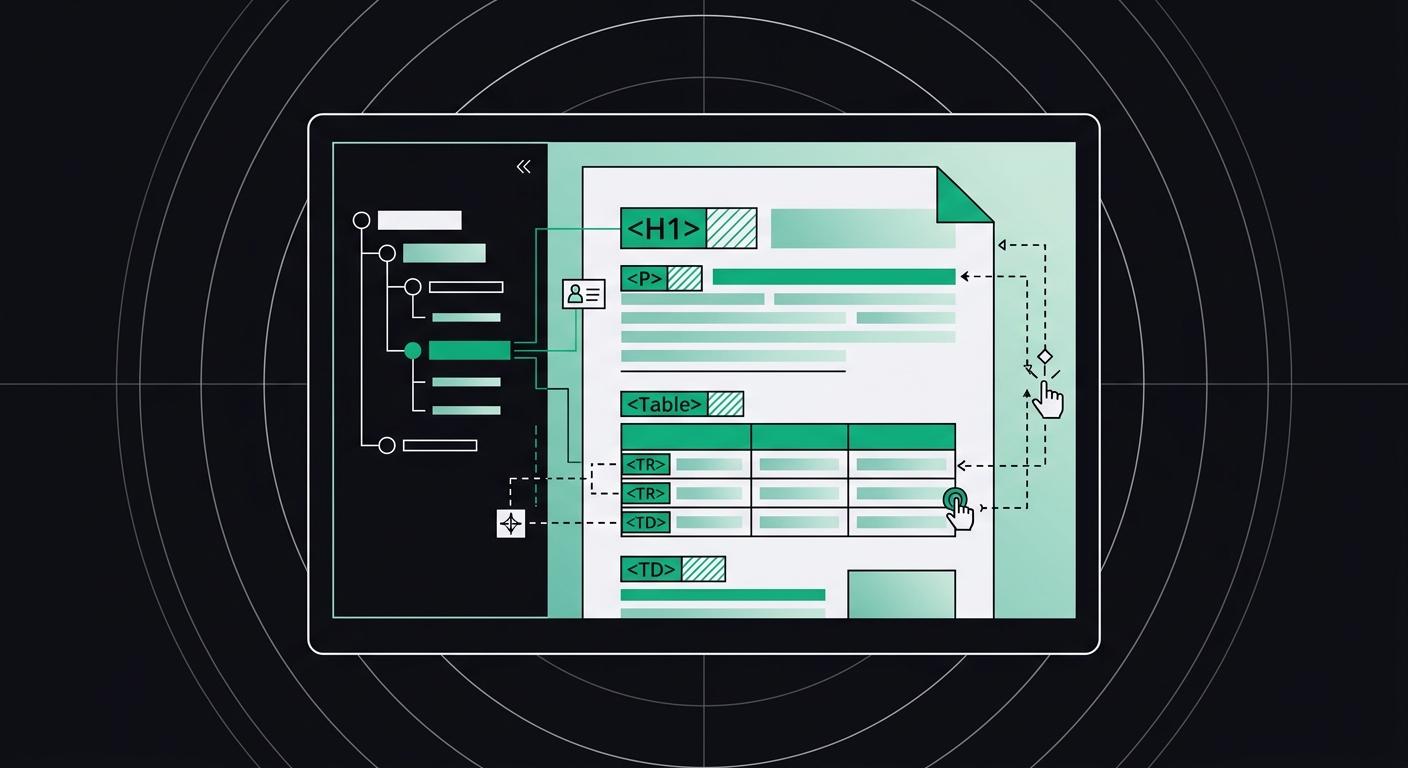
A PDF is untagged when it has no underlying structure map — no code layer telling a reader what's a heading, what's body text, what's a table cell, and what order to read things in. Visually, an untagged PDF can look perfect. Structurally, it's just a grid of text and image objects with coordinates.
WCAG 2.1 doesn't have a separate rulebook for PDFs. The same success criteria that apply to web pages apply here, because W3C's WAI guidance treats PDF as just another format that has to meet the same bar as HTML: 1.3.1 (Info and Relationships), 1.1.1 (Non-text Content, i.e. alt text), 2.4.6 (Headings and Labels), and 4.1.2 (Name, Role, Value) all apply directly. An untagged PDF almost always fails all four at once, because none of that information exists in the file.
Under the ADA, PDFs count as part of your "place of business" content if you're a public-facing company, and Section 508 makes tagging mandatory for federal agencies and contractors. So this isn't a gray area — it's one of the more clear-cut compliance gaps out there, and one of the most commonly missed. For the legal side of how ADA and WCAG relate, our ADA vs. WCAG breakdown covers what actually counts as a violation.
Why Do AI Search Tools Ignore Untagged PDFs?
AI crawlers skip or misread untagged PDFs because they rely on the same structural signals screen readers do — headings, semantic order, and extractable text — and an untagged PDF gives them none of it.
Here's the part most people don't expect: ChatGPT, Perplexity, and Google's AI Overviews don't "see" a PDF the way you do. They run text extraction on it. If your PDF was made by scanning a printed page (common with older government forms, product spec sheets, or old menus), there might be zero actual text in the file — just a picture of text. No OCR layer, no extraction, no citation. Ever.
Even when there's real text, an untagged PDF often extracts in the wrong order. Multi-column layouts are the classic failure: a two-column PDF export can pull text left-to-right across both columns instead of down one column and then the other, turning a coherent paragraph into scrambled nonsense. An AI model reading that isn't going to cite it — it can't even parse it into a sentence that makes sense.
This is the same underlying problem we talk about in our guide on what AI readability actually means: crawler access, a shared content core between what humans and bots see, and extractability. PDFs fail on all three if they're untagged, scanned without OCR, or built with a layout tool that doesn't preserve structure.
How Do You Check If a PDF Is Tagged?
The fastest check: open the PDF in Adobe Acrobat, go to the accessibility panel, and run "Full Check." It'll flag missing tags, missing alt text, and reading-order issues in about 20 seconds.
Don't have Acrobat Pro? A few other quick tests work almost as well:
- Try to select and copy text. If you can't select individual words — if the whole thing behaves like one image — it's a scanned document with no text layer at all.
- Check the document properties. In Acrobat or Preview, look for a "Tagged PDF" field under Advanced properties. It'll say Yes or No.
- Run it through PAC (PDF Accessibility Checker), a free tool built specifically for testing against PDF/UA and WCAG. It's the closest thing to an industry-standard free checker for this.
- Ask a screen reader to read it. NVDA (free, Windows) will either read the content in a sensible order or immediately expose the chaos — reading table cells in the wrong sequence, skipping images entirely, or announcing "no tags found."
A quick industry data point worth knowing: WebAIM's ongoing accessibility research consistently finds that PDF remediation issues rank among the most common — and most overlooked — failures on government and enterprise sites, right alongside missing alt text and poor color contrast on the HTML side. PDFs just don't get audited as often because they feel like "documents," not "website." They're both.
How Do You Fix an Untagged PDF?
You fix an untagged PDF by adding a tag tree that defines headings, paragraphs, lists, tables, and reading order — either by regenerating it correctly from the source file or by manually tagging it in Acrobat Pro.
Start at the source, not the PDF
If you have the original Word, InDesign, or Google Docs file, fix it there first. Use real heading styles (Heading 1, Heading 2), not bold 18pt text pretending to be a heading. Use the built-in list and table tools instead of tabs and spaces. Then export with tagging turned on — in Word, that's "Save as PDF" with the "Document structure tags for accessibility" box checked, not "Print to PDF," which strips everything.
This one habit — fixing the source instead of the export — fixes 80% of your accessibility backlog with almost no extra effort per document.
If you only have the PDF
- Run OCR first if there's no selectable text. Acrobat's "Recognize Text" feature or a tool like ABBYY FineReader will add a text layer to scanned pages.
- Add tags automatically, then check the results by hand. Acrobat's "Autotag Document" gets you 60-70% of the way there on a well-formatted file — worse on complex layouts, form-heavy PDFs, or anything with sidebars and pull quotes.
- Fix the reading order using the Order panel. This is where multi-column layouts usually need manual correction.
- Add alt text to every image, chart, and figure. Decorative images (borders, dividers) should be tagged as artifacts so screen readers skip them instead of announcing "image, unlabeled." For guidance on writing alt text that also works for AI extraction, see our alt text guide — the same principles apply inside a PDF as they do on a web page.
- Tag tables properly with header rows (TH) distinct from data cells (TD), so a screen reader announces "Column: Price, Row: Widget A" instead of reading numbers with no context.
- Set the document language and title in the file properties. Small step, easy to forget, required by WCAG 3.1.1.
For forms specifically — think government applications or intake PDFs — every field needs a proper form field label, not just placeholder text. The same rules that apply to broken HTML forms apply here; our post on common WCAG form failures is written for web forms, but the labeling logic transfers directly to fillable PDFs.
What Belongs in an Accessible PDF Checklist?
An accessible PDF checklist should cover structure, images, tables, forms, and metadata — the same five categories that trip up almost every remediation project I've seen.
- Document has a real text layer (OCR'd if scanned)
- Tags exist and follow a logical hierarchy — one H1, nested H2s and H3s, no skipped levels
- Reading order matches visual order, especially in multi-column layouts
- Every meaningful image has alt text; decorative images are tagged as artifacts
- Tables have header rows/columns tagged correctly, no merged cells that break screen reader parsing
- Form fields have labels, and required fields are marked
- Document title and language are set in the properties (not just the filename)
- Color isn't the only way information is conveyed (same rule that governs contrast requirements — see our color contrast guide for the ratios WCAG requires)
- Bookmarks exist for documents over roughly 10 pages, mirroring the heading structure
Run each PDF through PAC or Acrobat's Full Check after remediation, not just before. It's shockingly easy to fix reading order and accidentally break a table tag in the process.
Is It Better to Convert PDFs to HTML Instead?
For anything meant to be read primarily on the web — pricing pages, blog-style content, FAQs — converting to HTML beats tagging a PDF almost every time, because HTML is natively structured, natively crawlable, and doesn't need a parallel remediation process.
PDFs still make sense for print-first documents: forms people need to download and mail, official reports with fixed pagination, contracts that need a stable, unchangeable layout. But if your "content" is really an article wearing a PDF costume, just build it as a page. Single-page apps have a related problem worth knowing about too — if your site renders content client-side with JavaScript, AI crawlers can fail to see it at all, which is a different flavor of the same core issue: structure that exists visually but not programmatically.
| Factor | HTML | |
|---|---|---|
| Tagging required for accessibility | Yes, manual work | Native if built with semantic HTML |
| AI crawler extraction | Depends on OCR + tags | Reliable by default |
| Update frequency | Slow, requires re-export | Fast, edit in place |
| Best use case | Print-first, legal, fixed layout docs | Articles, product pages, FAQs |
A mortgage broker I worked with in Denver had rate sheets going out as monthly PDFs — 12 a year, each one requiring a fresh remediation pass because the source spreadsheet changed every time. We moved the current rate sheet to an HTML table on the site and kept the PDF only as an optional download for people who wanted something to print. Remediation work dropped to almost nothing, and the rates started showing up in AI Overview answers within a few weeks — something the PDF version never managed in three years.
Frequently Asked Questions
Do all PDFs on a website need to be tagged for WCAG compliance?
Yes, if the PDF conveys information or provides a function to users — which covers the vast majority of PDFs businesses post. The only real exception is PDFs that are purely decorative or duplicated elsewhere in fully accessible form, which is rare in practice.
Can Google or ChatGPT read a scanned PDF with no text layer?
No. Without OCR, a scanned PDF is just an image, and AI crawlers extract text — they don't run image recognition on every document they index. Run OCR before publishing any scanned document.
How long does it take to tag a PDF properly?
A simple 5-page document with clean formatting takes maybe 15-30 minutes in Acrobat. Complex documents with tables, forms, and multi-column layouts can take a few hours. Fixing the source file and re-exporting is almost always faster than manually tagging a finished PDF.
Does converting a PDF to HTML hurt my ADA compliance if I keep both versions?
No — offering both is common and fine, as long as the HTML version is the accessible, primary version and the PDF is clearly a supplementary download. Just don't make the PDF the only way to access required information.
What's the difference between PDF/UA and WCAG for PDFs?
PDF/UA (ISO 14289) is a technical standard specific to PDF tagging syntax, while WCAG is the broader accessibility standard that applies across web content, including PDFs. A file that meets PDF/UA will generally satisfy the relevant WCAG success criteria, but WCAG is the standard that ADA lawsuits and Section 508 audits actually reference.
Will fixing my PDFs improve my AI search visibility?
It can, especially for content like spec sheets, pricing, or reports that AI tools might otherwise skip. Tagged, OCR'd PDFs with clean reading order are far more likely to get parsed and cited than scanned or poorly tagged ones — but for content you want AI tools to find reliably, converting to structured HTML still performs better overall.
Conclusion
If you've got a backlog of PDFs on your site, don't try to fix all of them this week. Pull the ones that get the most traffic or the most legal exposure — application forms, annual reports, anything tied to a service people actually rely on — and start there. Run each one through PAC or Acrobat's Full Check, fix the source file where you can, and re-export instead of patching a broken export after the fact. If you're not sure where your site stands overall, a free WCAG and AI-readability scan will flag structural issues across your pages, and you can pair that with the checklist above for the PDFs sitting alongside them.
Check your website's accessibility
Scan against all 33 WCAG 2.1 rules and get code-level fix suggestions — free.
Run a free scan →